PDF Owl: What's New in Version 1.5
August 11, 2026
Annotations list view
Browse every annotation in one place with the new annotations list view. PDF Owl shows vertically cropped cutouts of annotated regions exactly as they appear in the PDF, labeled with the page and outline context, so you can skim highlights without scrolling through the whole document.
To open the view, use the shortcut ⌘ + J, the new toolbar icon, or View → Annotations only from the menu.
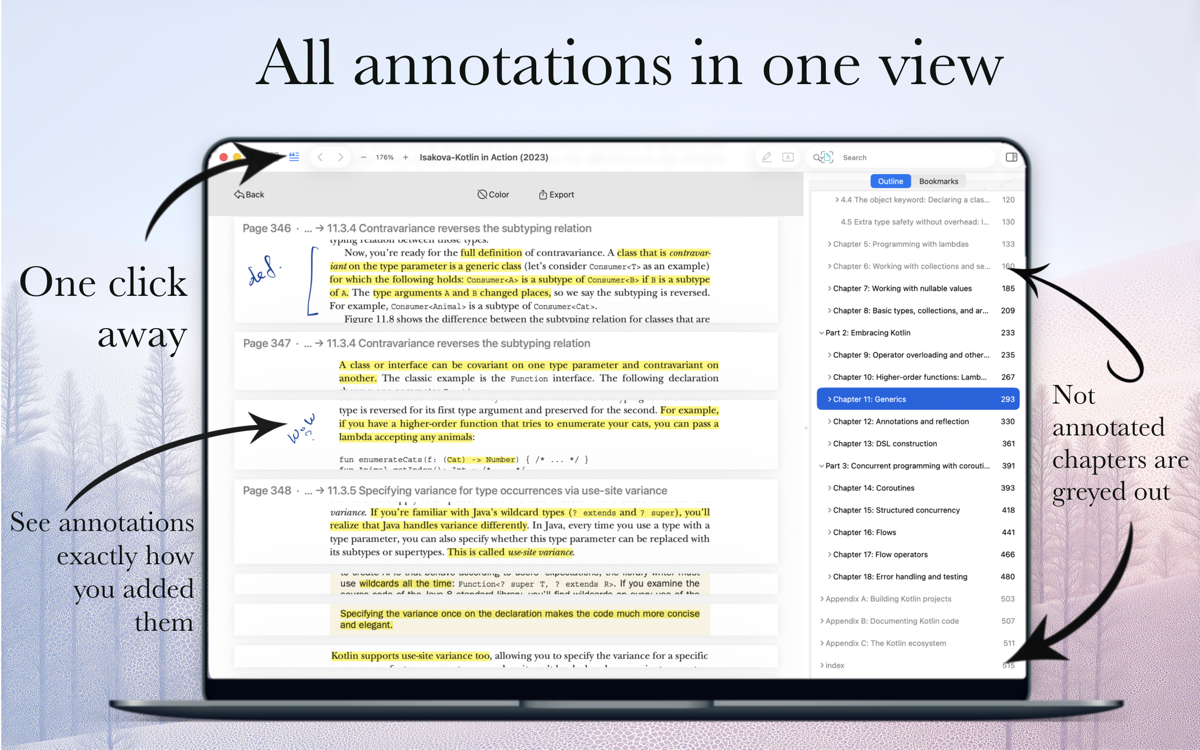
In line with its mission to make PDFs easier to navigate using the ToC, PDF Owl keeps the ToC in sight while you're viewing annotations. It also greys out outline items with no annotations so you can see which sections actually have notes.
In addition, you can filter annotations by highlight color and export them as plain text, Markdown, or HTML (with colored highlight spans) when you want them outside the PDF.
Improved page status bar
Click the page number to open Go to Page, and use the hover gear menu to hide the bar or choose what it shows—page info, reading percent, and an optional pages-left-in-section count.
Tabs and windows
Do you use PDF Owl with multiple windows and tabs? Now you can move a tab into another window without painfully dragging it between windows.
The document tab context menu now includes Move Tab to Window, so you can move a tab into another window.
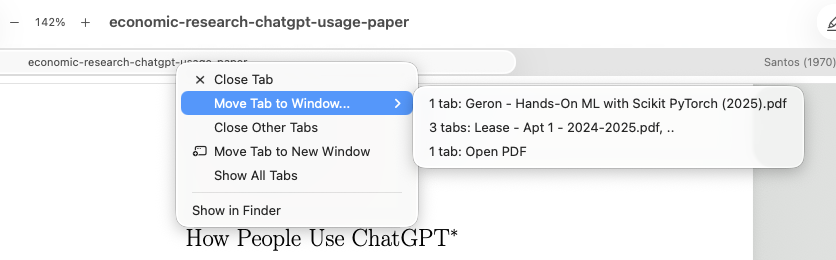
In addition, the context menu includes Show in Finder, so you can locate the file on disk.
Bug fixes
When a PDF changes externally (for example, after a Dropbox sync), reload keeps the outline selection correct if pages are inserted or deleted.
Apps
Studio
Designed and built in the city of New York.
© 138th Street Studio, 2024-2026.