Highlight and annotate PDF files
Active reading works best when you can mark what matters and come back to it later. With PDF Owl, you can highlight passages, leave free-text notes on the margins, and review everything in one place with the annotations list view.
Highlighter
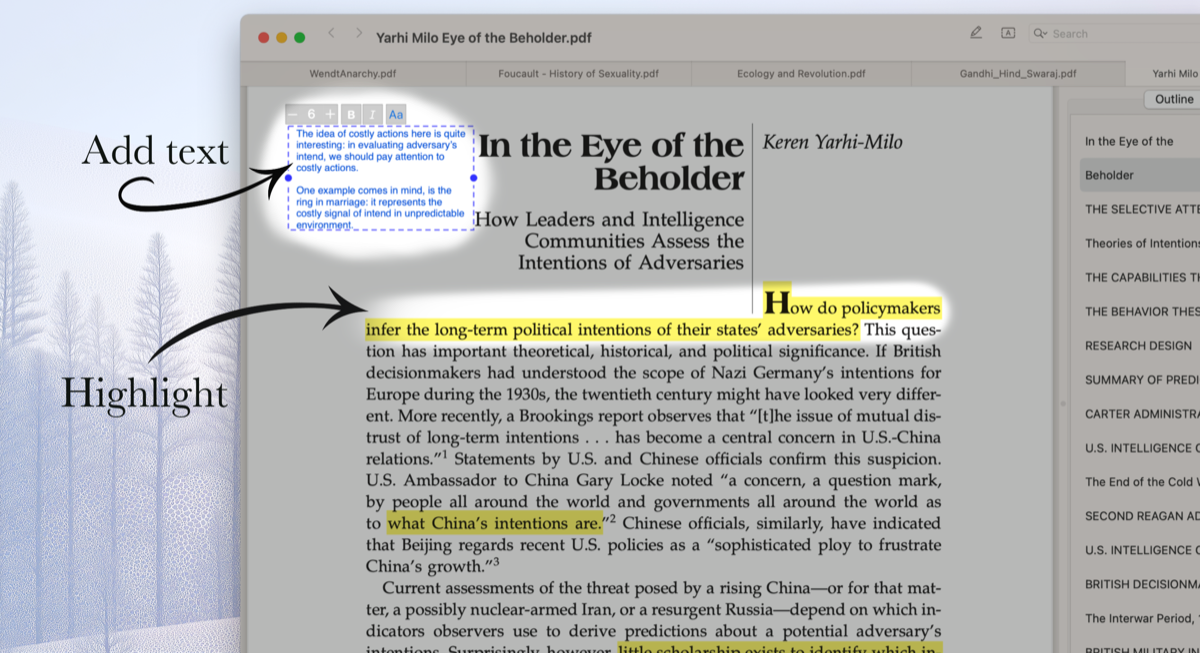
Select text and highlight it in the color that fits your system—for example yellow for key claims, green for examples, or pink for questions to revisit. Choose a color from the context menu on the selected text, or set a default highlighter color for new marks.
Highlights stay in the PDF, so other apps and devices that support PDF annotations can still show them.
Free text on the margins
When a highlight is not enough, add a free-text note next to the passage. Place short comments, reminders, or cross-references on the margins without leaving the page you are reading.
Text annotations are saved with the document, so your notes travel with the file.
Annotations list view
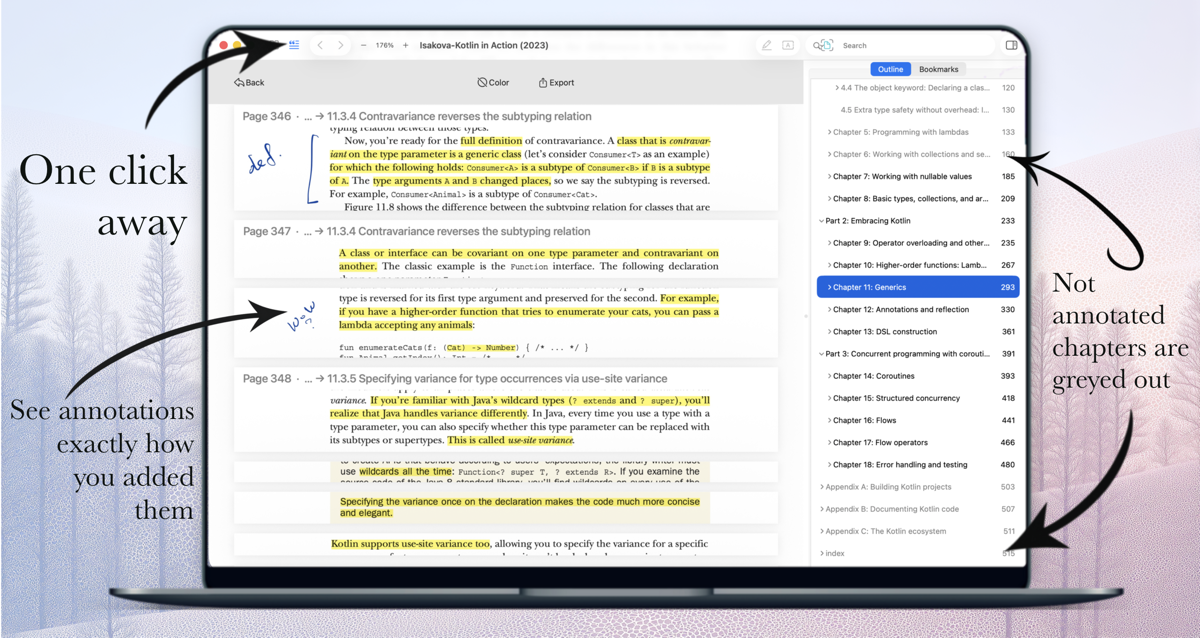
Open View → Annotations only (⌘ + J) to browse every annotation in one vertical list. PDF Owl shows cropped cutouts of annotated regions with page and outline context, so you can skim highlights and notes without scrolling the whole document.
Filter by highlight color when you only want one category of marks. Click a cut to jump back to the same place in the normal PDF view, and keep the outline visible so you always know which section you are in. Outline items without annotations are greyed out to make annotated sections easier to spot.
When you need your notes outside the PDF, export annotations as plain text, Markdown, or HTML with colored highlight spans.
PDF Owl is a tool for enhancing PDF files for better reading experience. It includes reading and annotating functions. It is available for MacOS.

Apps
Studio
Designed and built in the city of New York.
© 138th Street Studio, 2024-2026.